
Session Insights
AgentsView can generate AI-powered summaries and analysis of your coding sessions using Claude, Codex, Copilot, or Gemini. Insights run locally — your session data is sent to the AI agent running on your machine, and the generated markdown is stored in your local database.
Navigate to the Insights page by clicking Insights in the header navigation bar.
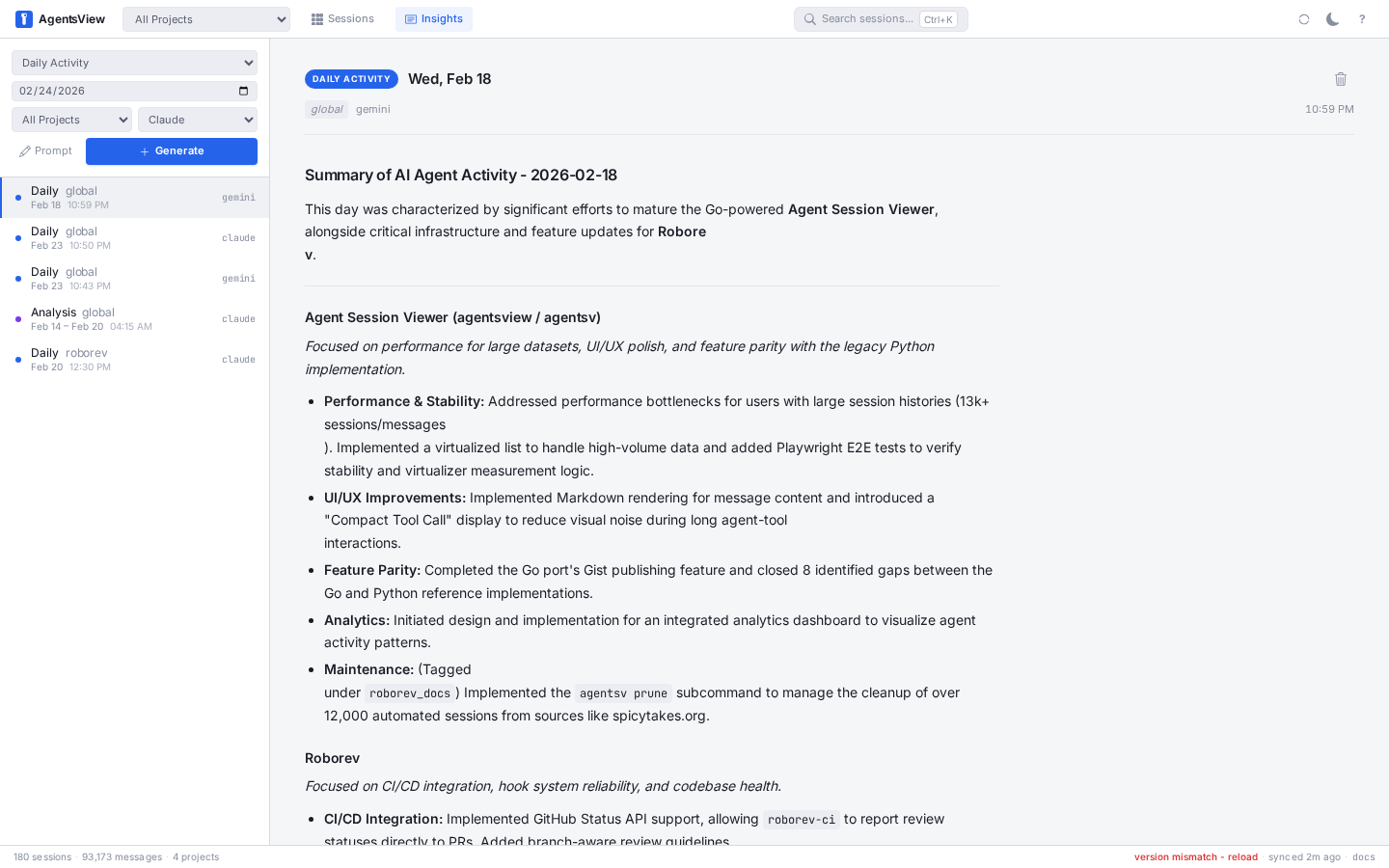
Insight Types
There are three generation modes, selected from the dropdown at the top of the sidebar:
| Mode | What It Generates |
|---|---|
| Daily Activity | A concise summary of what was accomplished on a single day |
| Date Range Activity | A summary covering a span of days, with presets for 7 and 30 days |
| Agent Analysis | A deeper analysis of patterns, effectiveness, and suggestions for improving your agent workflows |
Daily Activity and Date Range Activity both produce daily_activity
type insights. Agent Analysis produces agent_analysis type
insights with more detailed recommendations.
Generating an Insight
The sidebar panel contains all the controls for generating insights.
1. Select a Mode
Choose Daily Activity, Date Range Activity, or Agent Analysis from the mode dropdown.
- Daily Activity shows a single date picker.
- Date Range Activity shows start and end date pickers with “Last 7 days” and “Last 30 days” preset buttons.
- Agent Analysis shows a single date picker for the analysis target.
2. Set Filters
- Project — scope the insight to a specific project, or leave on “All Projects” for a global view.
- Agent — choose which AI agent generates the insight: Claude, Codex, Copilot, or Gemini. Defaults to Claude.
3. Add Context (Optional)
Click Prompt to expand a text area where you can provide additional context to guide the generation. For example:
- “Focus on test coverage improvements”
- “Summarize the refactoring work”
- “What patterns should I change?“
4. Generate
Click the Generate button (or the + icon). The insight
streams in via the agent CLI running on your machine.
While generating, a task appears in the sidebar with a spinner and phase indicator. You can queue multiple insights at once — each runs as a separate task. Use Stop all to cancel everything, or dismiss individual tasks.
When generation completes, the insight moves to the completed list and is automatically selected for viewing.
If generation fails — for example, due to an API error or timeout — the task shows an error status with the error message directly in the sidebar. This replaces the previous behavior where failures were silent.
Viewing Insights
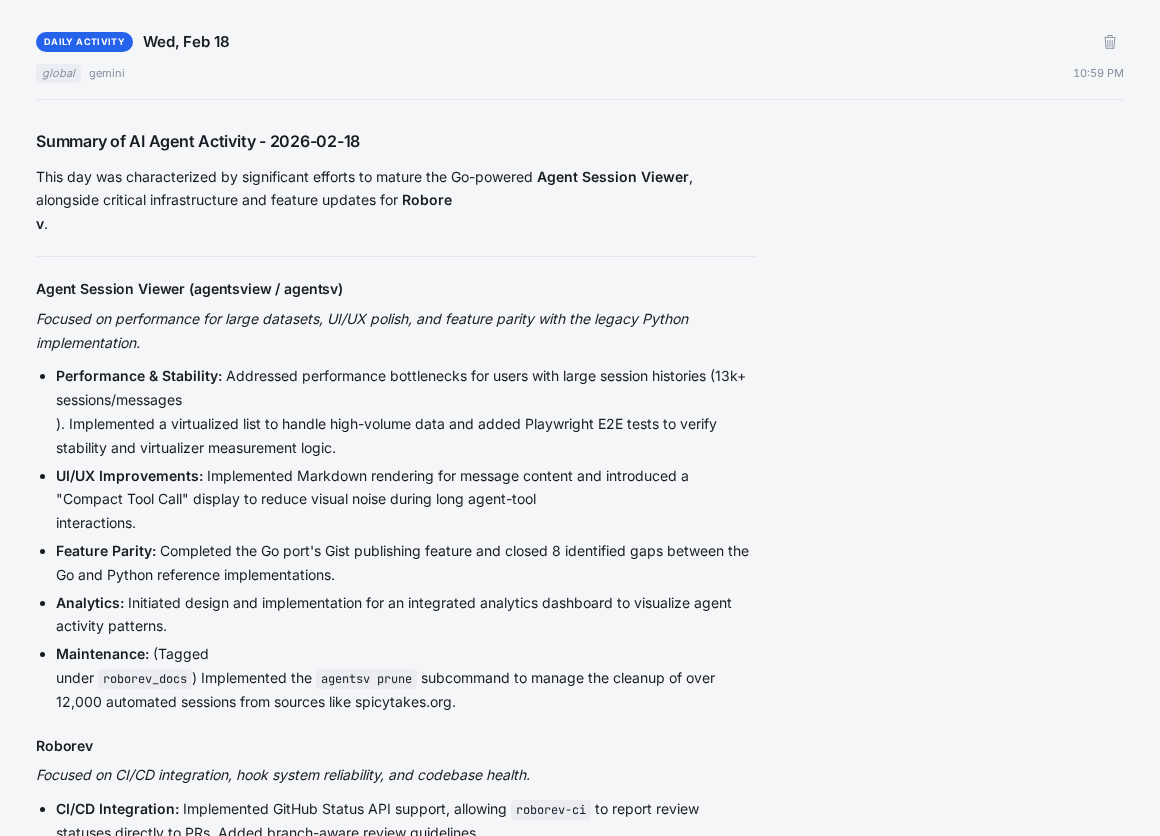
Select any completed insight from the sidebar list. The content panel displays:
- Type badge — blue for daily activity, purple for agent analysis
- Date or date range — the time period covered
- Metadata — project scope, agent name, model used, and when the insight was created
- Rendered markdown — the full insight content with headings, lists, code blocks, tables, and blockquotes
Managing Insights
- Delete — click the trash icon in the insight header to remove it permanently.
- Filter by project — changing the project dropdown filters the completed list to show only insights for that project (or global insights when set to “All Projects”).
- Insights are stored in your local SQLite database and persist across server restarts.
How It Works
When you click Generate:
- AgentsView queries your session database for sessions matching the date range and optional project filter (up to 50 sessions).
- It builds a markdown prompt containing session metadata: IDs, projects, agents, timestamps, message counts, and first message previews.
- The prompt is sent to the selected agent CLI (
claude -p,codex exec,copilot -p, orgemini) running locally on your machine. - The response streams back via Server-Sent Events, showing progress in the sidebar task list.
- The completed insight is saved to the database and displayed in the content panel.
The generation has a 10-minute timeout. Your API keys and subscription credentials are handled by the agent CLIs themselves — AgentsView does not manage or store them.